

223 Denius Student Center
Building
View Map LocationCapacity
10
Classroom Technology
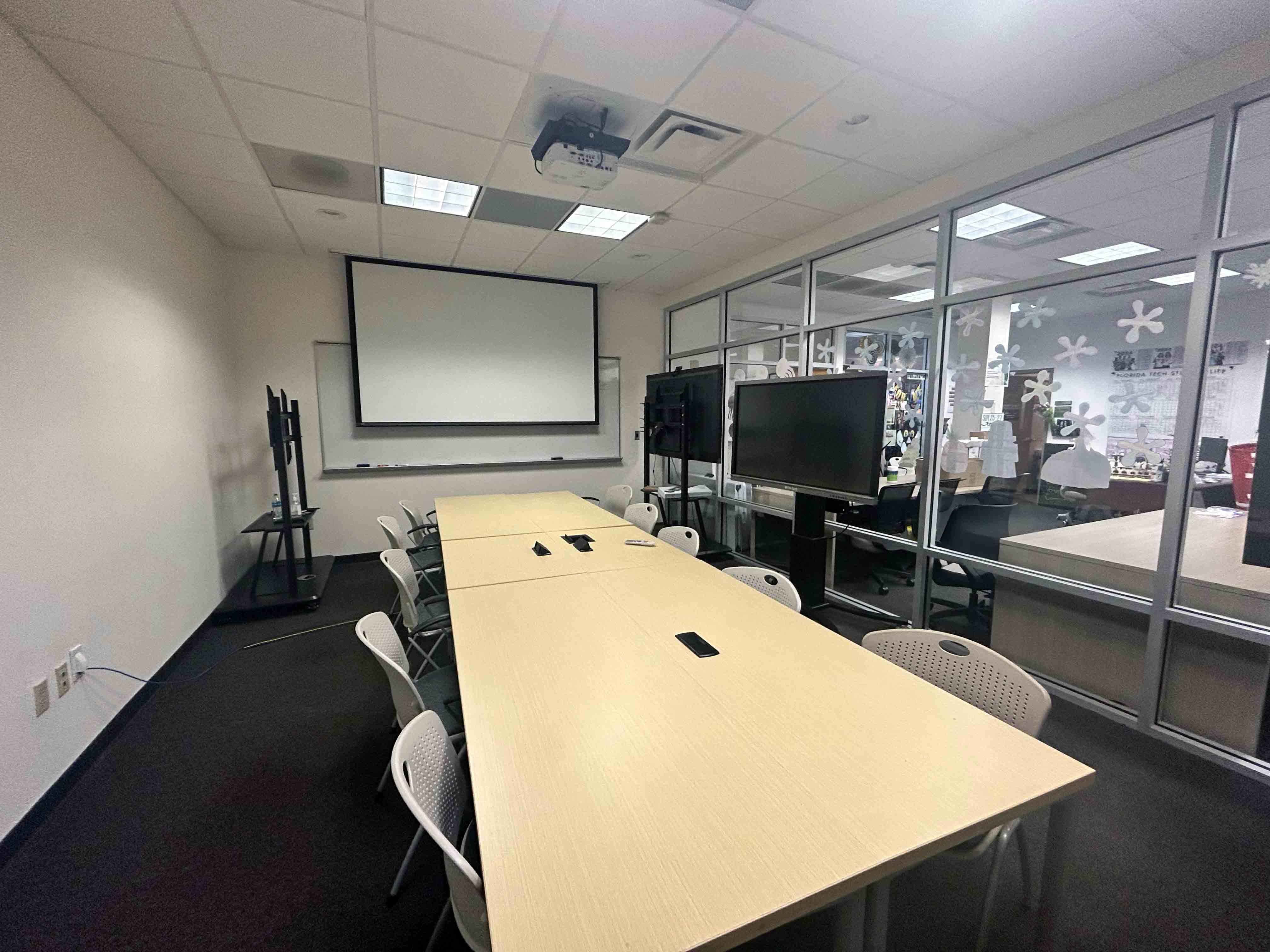
Interactive Whiteboard Cleartouch, Projector, Specialty Room
Click for full size image.
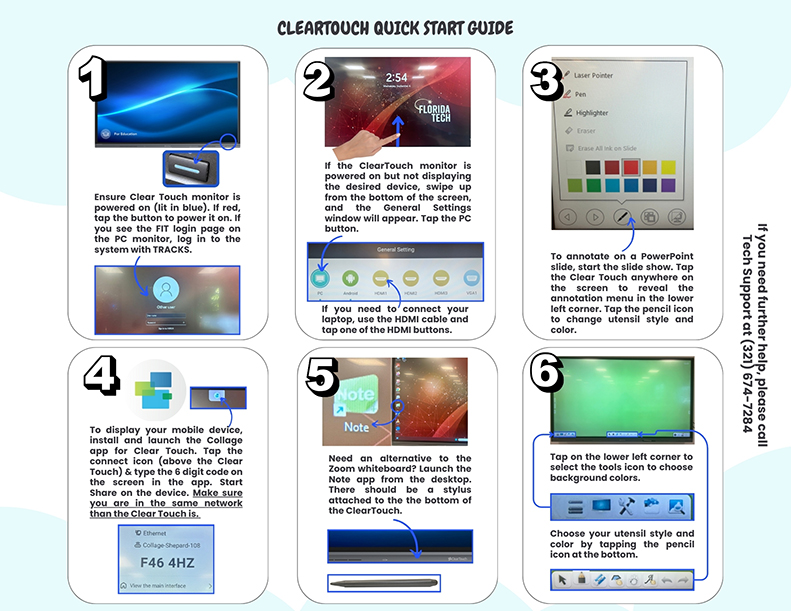
Clear Touch Monitor & Display Guide
1. Powering On
- Ensure the Clear Touch monitor is powered on.
- If the power light is blue, it’s on.
- If it’s red, tap the power button to turn it on.
- If you see the FIT login page on the PC monitor, log in using your TRACKS credentials.
2. Displaying Devices
- If the Clear Touch monitor is on but not showing the desired device:
- Swipe up from the bottom of the screen to open the General Settings window.
- Tap the PC button to display the classroom computer.
- To connect a laptop, use an HDMI cable and tap one of the HDMI buttons.
3. Annotating on PowerPoint
- Start the PowerPoint slideshow.
- Tap anywhere on the Clear Touch screen to reveal the annotation menu in the lower left corner.
- Tap the pencil icon to choose utensil style and color.
4. Displaying Mobile Devices
- Install and launch the Collage app for Clear Touch.
- Tap the connect icon (above Clear Touch) and enter the 6-digit code shown on the screen into the Collage Share section of the app.
- Ensure your mobile device is connected to the same network as Clear Touch.
5. Using the Note App
- For an alternative to Zoom whiteboard, launch the Note app from the desktop shortcut.
- A stylus is attached at the bottom of the Clear Touch monitor.
6. Annotation Tools
- Tap the lower left corner to access background color options.
- Tap the pencil icon at the bottom to select utensil style and color.
Need Help?
Call Tech Support at (321) 674-7284